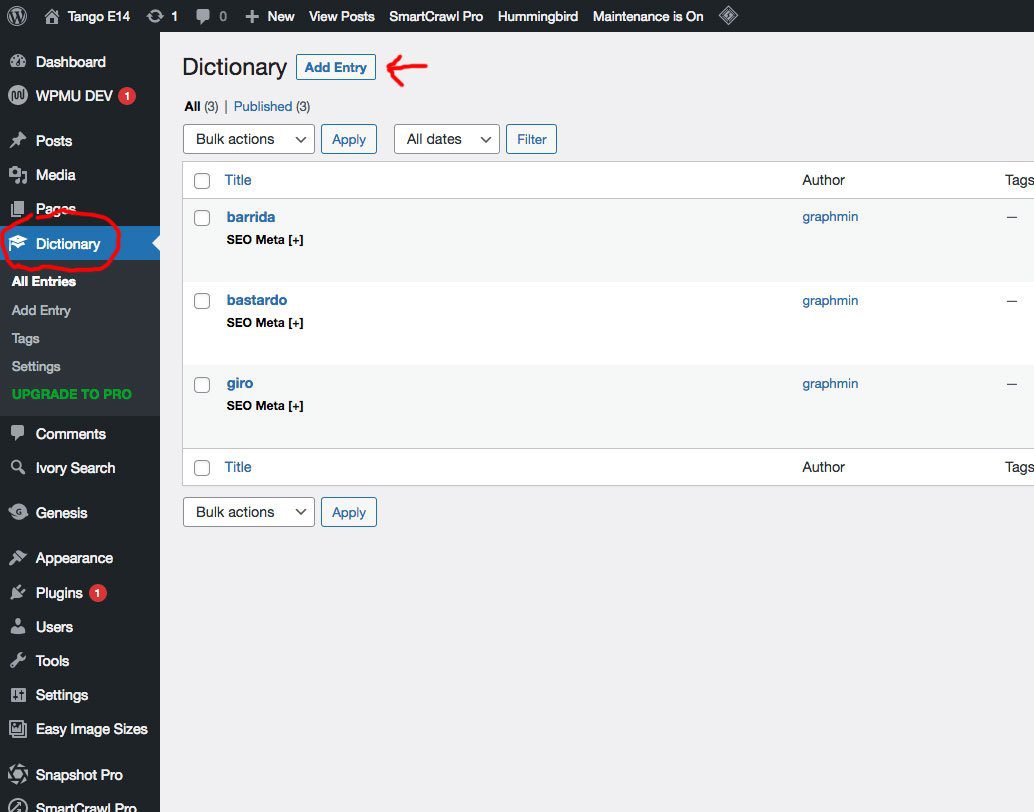
The Dictionary is a ‘custom post type’ which means it is, if you will, a separate chapter populated with its own, dedicated posts separate to the regular posts.
In the main dashboard, you will see in the lefthand column menu; ‘Dictionary’. Click on this and you will see the existing entries, each one as a separate post. Here you can edit or delete these and click on ‘add entry’ to create a new one. The dictionary entries are ordered alphabetically and the pagination is organised automatically as you add more entries. Once a word has been added to the Dictionary, it automatically detects it in the content of your articles. Just mouse-over on ‘giro’ right here and you’ll see how it works.
I have set the Dictionary so that the whole entry shows in the archive listing. I’ve done this because having to click through from each teaser for each definition makes it fiddly if someone wants to browse. To make this work visually, the Dictionary entries should be short and concise, not more than a few hundred words. Certainly, no longer than this explanation. If your definition of the giro runs to 1,000 words then it is an article for a post, not a dictionary entry.
Dictionary styling notes
Couple of pointers on styling to keep everything looking professional. Note, this house style applies to all articles.
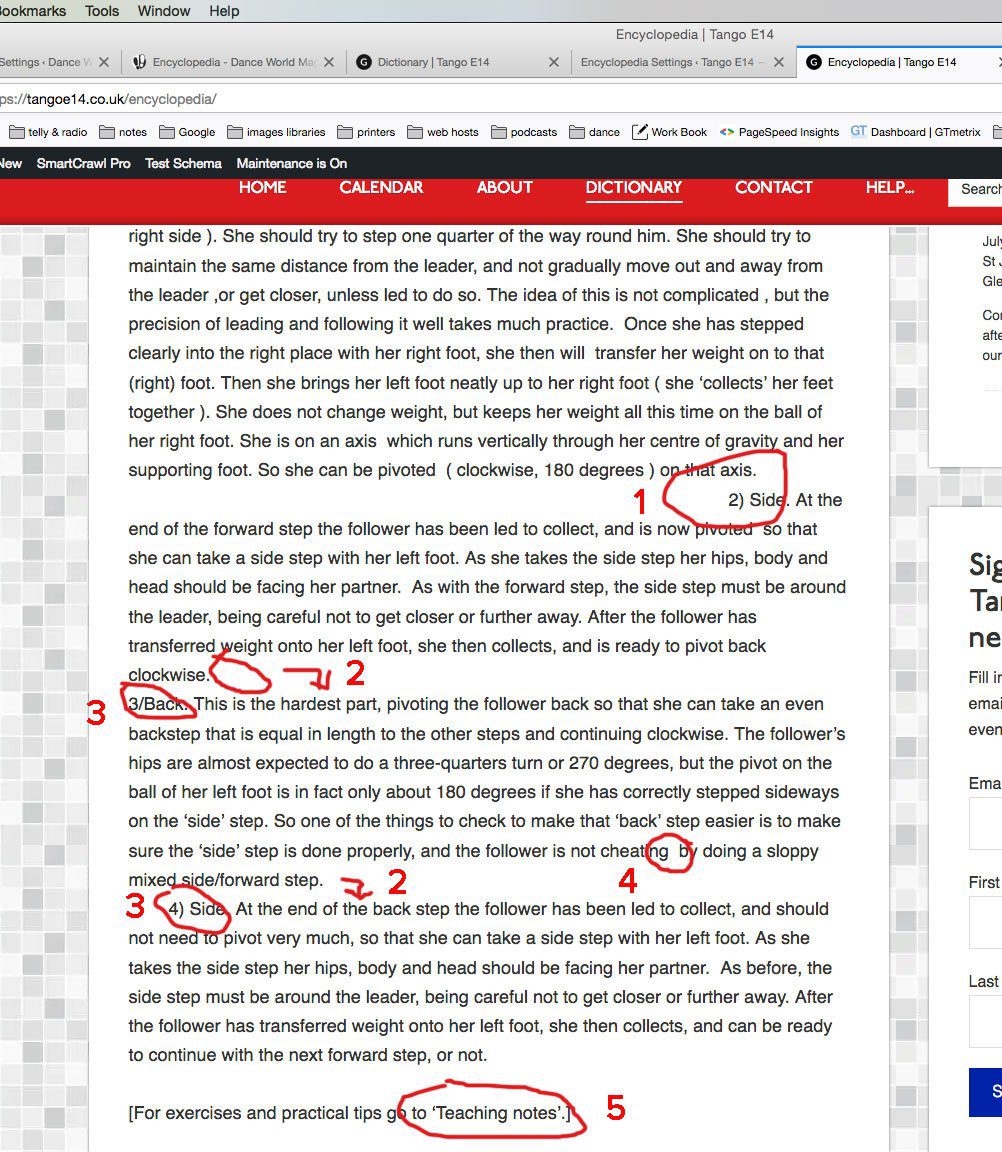
- NEVER attempt any kind of styling with indents or spaces. Simply type and use hard returns [return] at the end of paragraphs. Paragraphs are separated by a single blank line space automatically. This is an online publishing standard. DO NOT indent paras. As well as uniform standard for visitors, the standard formatting protocols also help Google index and understand your article content.
- Do not use ‘soft’ returns [shift-return]. When you end a line, use a hard return [return].
- If you are going to apply your own styling, be consistent and use the styling tools in WordPress. So if you want to display a list of bulleted points or numbered points, use these tools in WordPress – DO NOT simulate a numbered list with manually typed numbers and brackets, etc. Again, this is about maintaining consistency in design for visitors and clarity of content for Google.
- NO DOUBLE WORD SPACES. They are ugly and can make a mess of the way the lines break on different screen sizes. Also, check that spaces are positioned carefully with respect to punctuation and brackets. You have ‘leading’ and ‘trailing’ spaces inside brackets which need removing. Brackets which are separated from their content by spaces risk being separated from their content by line breaks.
- Don’t put ‘see some other page’ without a link in your posts. This is like your sat nav giving directions; ‘yeah, just drive along the road until you get there.’ Put a link on the text to the article you are referencing. Internal links are useful for visitors and good for Google SEO rankings.
Keep the dictionary entries short. For visitor convenience, I’ve set the dictionary entries so they show complete on the dictionary archive pages. This means that visitors can read through the whole of the entries without clicking in and out of the individual entry pages. It makes for a nice visitor browsing experience. However, for this to work, these entries need to be short and sweet. The ‘giro’ entry is way too long. This entry is an article in its own right and should be a post (in the category of ‘teaching notes’). The dictionary entry should be a brief description of giro with a line at the close saying ‘for more information on the giro see this teaching note’ with a link to the giro teaching post article.